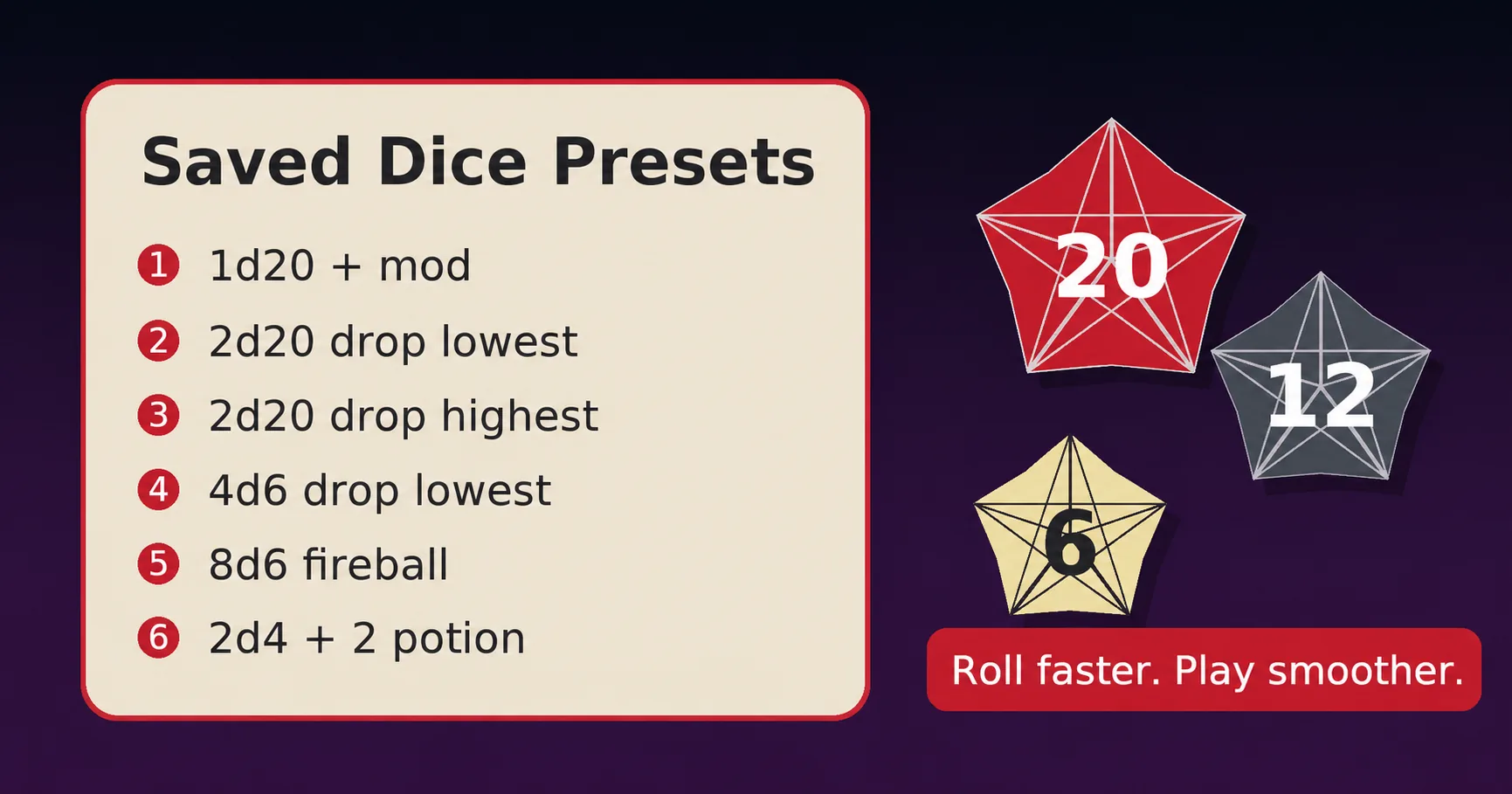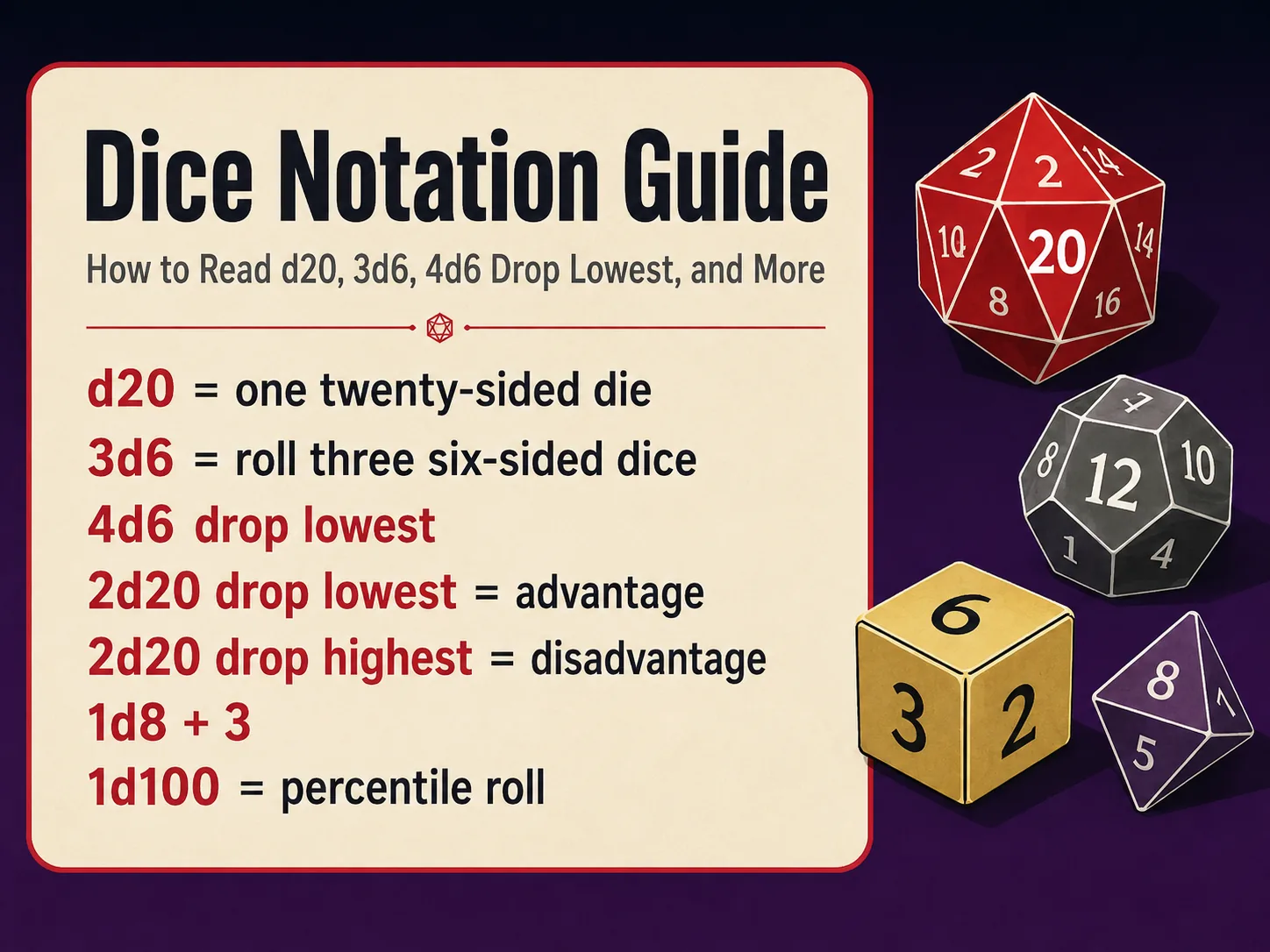
DnD Dice Roller is quick for a single 1d20 and flexible enough to hold a whole character: a multi-line combat setup, a 5E ability score roller, or AD&D and homebrew rolls that physical dice can't do.
This guide covers the controls, the advanced options, and worked examples with the odds behind them.
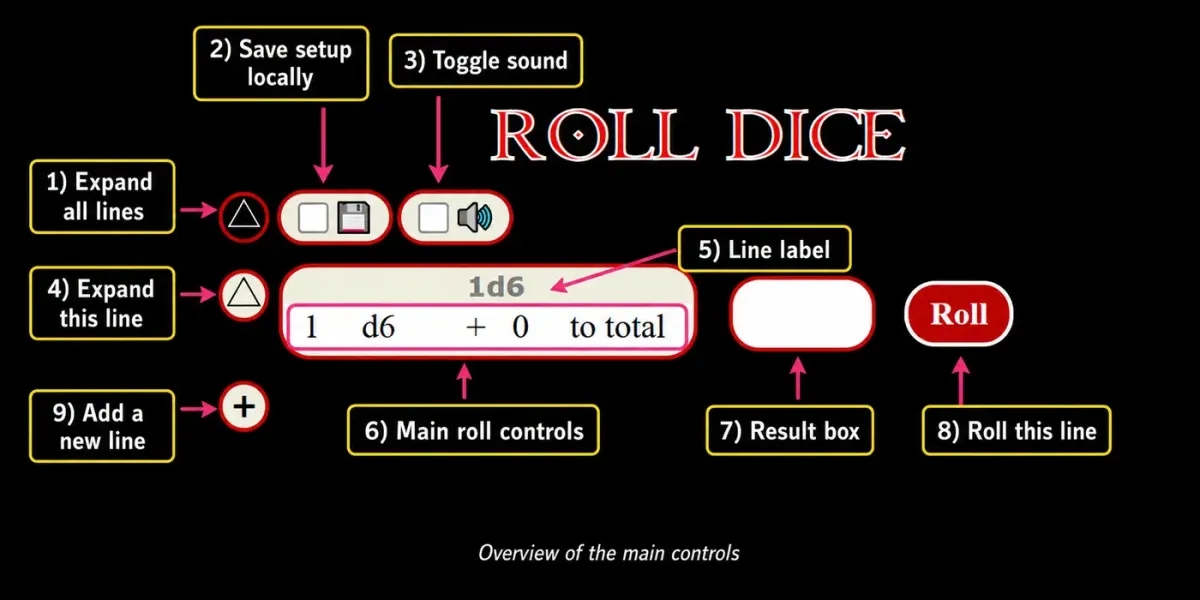
Figure 1. Overview of the main controls.
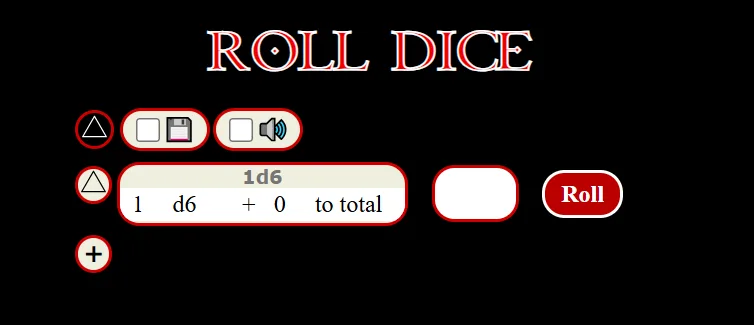
The basic layout
Each dice line has five parts:
Line label The text at the top of the line. Leave the automatic label or type your own (up to 22 characters), such as Strength, Attack Roll or Short sword damage.
Main roll controls
- number of dice (1 to 99)
- die type
- plus or minus
- modifier value
- whether the modifier applies to each die or to total
Result box The box to the right of the line. Your result lands here, and every roll also goes into the Dice Roll Log beside the roller.
Roll button Rolls this line only.
Line actions The buttons at the left expand the line, remove it, or duplicate it.
You can have up to 10 lines. The triangle above the list expands every line at once.
Saving, sound, 3D dice and sharing
There is no save button. The roller saves every change as you make it. It's the only save in D&D you can't fail.
- Lists. The box at the top of the roller holds your lists. Local Browser keeps your lines in the browser you're using and never sends them anywhere. Sign in with a free account and you can keep up to 10 named lists (one per character, say) that follow you to any browser.
- Sound. The speaker icon turns the roll sound on or off.
- 3D dice. The d20 icon throws animated dice across the page when you roll.
- Share. The two-people icon makes a link. Everyone who opens it rolls into the same log, which is handy for online games.
Local Browser belongs to the browser, not the computer: Chrome and Safari on the same laptop keep separate lines. Private windows forget everything when you close them. To move a setup, use Backup & Transfer on the Settings page.
Adding a custom label
A label turns a formula into an action. Instead of a line called 1d6, call it:
- Short sword damage
- Initiative
- Wisdom save
- Fireball
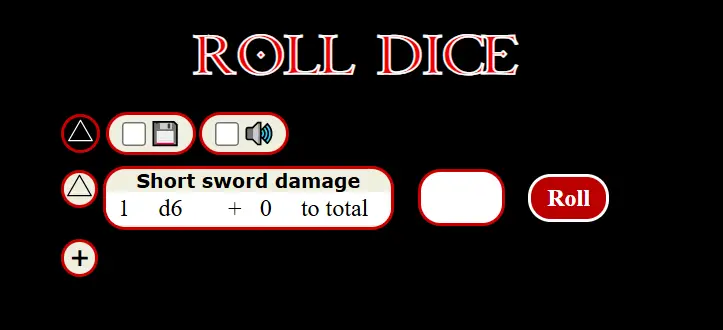
Figure 2. A line with a custom label.
Understanding the main roll controls
A line set to 4, d6, +, 0, to total rolls 4d6 with no modifier.
A line set to 1, d10, +, 5, to total rolls 1d10 + 5.
To total adds the modifier once. To each adds it to every die. The difference matters:
| Setting | Formula | Average |
|---|---|---|
| 3d6 + 2 to total | 3d6 + 2 | 12.5 |
| 3d6 + 2 to each | 3d6 + 6 | 16.5 |
Most D&D damage is "to total": a greataxe with +3 Strength is 1d12 + 3, not 1d12 + 3 per die.
Expanding a line and using advanced options
Expand a line to reach the advanced controls.
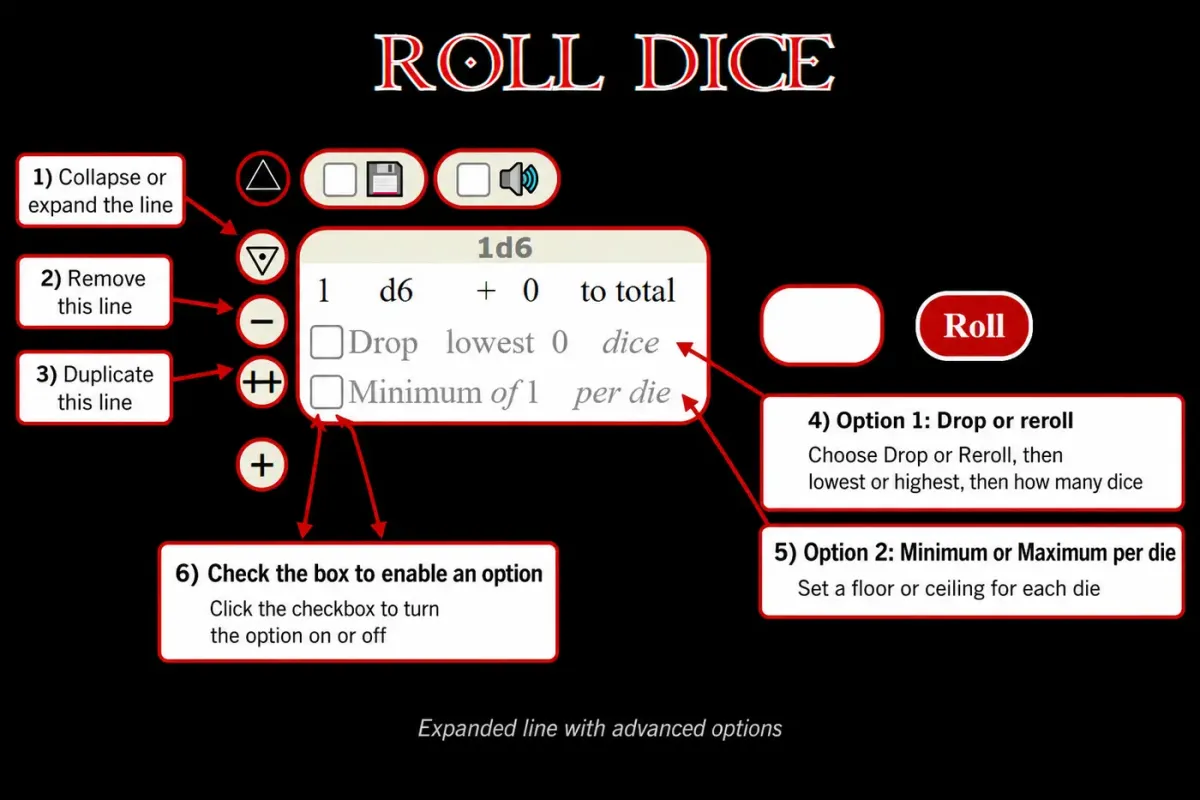
Figure 3. Expanded line with advanced options.
Line actions
- triangle: collapse or expand the line
- minus: remove the line
- ++: duplicate the line, advanced options included
- plus below the list: add a new blank line
Advanced option 1: Drop or reroll
Tick the first option and choose:
- Drop or Reroll
- lowest or highest
- how many dice (at least one die always stays, and at most 5 can go)
Drop throws those dice away. Reroll rolls them once more and keeps the new result, even if it's worse.
Common uses:
- 5E advantage:
2d20, drop lowest 1 - 5E disadvantage:
2d20, drop highest 1 - 5E ability scores:
4d6, drop lowest 1
One caution on Reroll: it rerolls the lowest die whatever it shows. The 2014 Great Weapon Fighting style rerolls only 1s and 2s [2], so Reroll lowest is close to it but not the same rule.
Advanced option 2: Minimum or Maximum per die
The second option sets a Minimum or Maximum for every die, from 1 up to the die's highest face. A minimum turns low rolls up to the floor; a maximum pulls high rolls down to the ceiling. Dropped dice are left alone.
Physical dice can't do this, which makes it the tool for:
- AD&D-style or older-school variants
- class features that set a floor on a die
- homebrew rules and loot tables
Building a multi-line setup
The roller earns its keep when you stack lines.
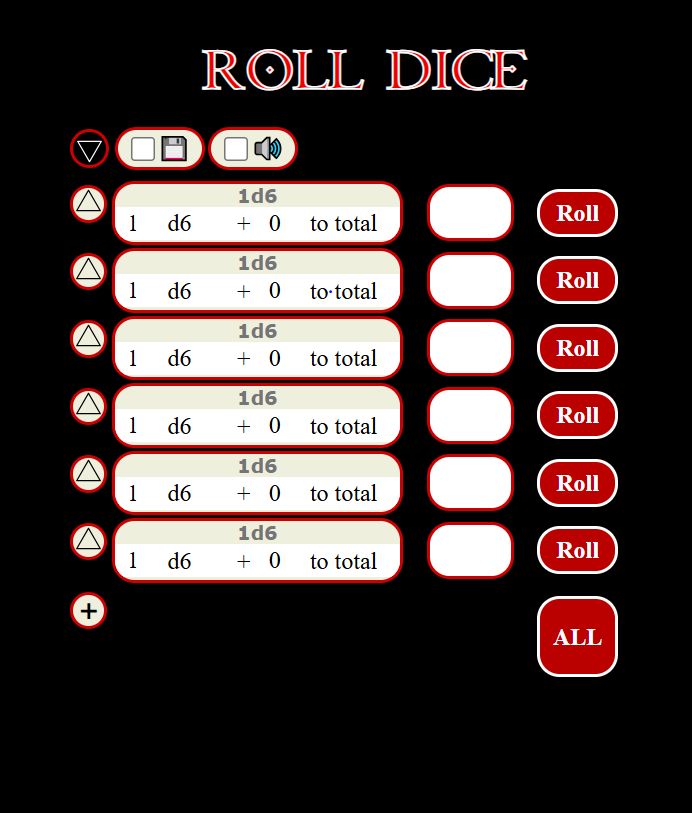
Figure 4. Multi-line setup.
Use several lines to:
- roll a full set of ability scores
- keep upcast versions of a spell ready
- run a monster's multiattack
- split damage types across lines
Build one line, then press ++ to copy it rather than rebuilding it from scratch.
Example 1: Advantage and disadvantage in D&D 5E
SRD 5.2: roll a second d20, use the higher for Advantage and the lower for Disadvantage. Several sources of Advantage still mean only two d20s, and having both Advantage and Disadvantage cancels out to one d20 [1].
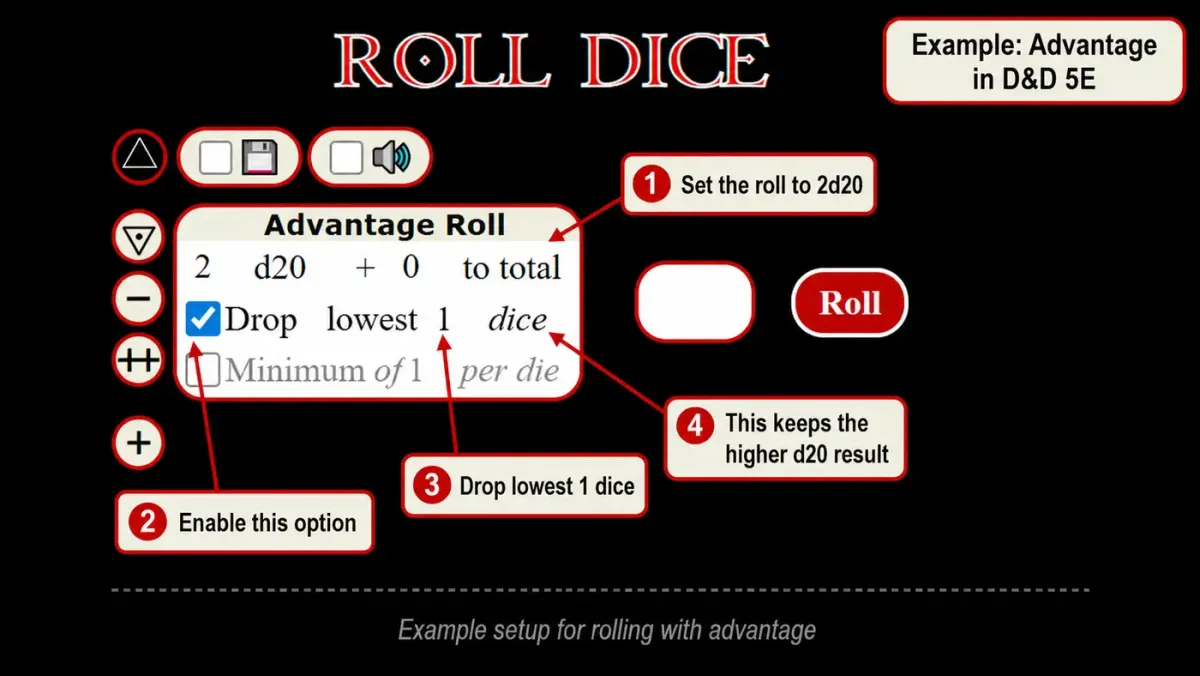
Figure 5. Example setup for rolling with advantage.
- Set the line to 2d20
- Expand the line
- Tick the first advanced option
- Set it to Drop lowest 1 dice
- Roll
For disadvantage, switch it to Drop highest 1 dice.
What that buys you (exact odds for a fair d20):
| Need to roll | Straight d20 | Advantage | Disadvantage |
|---|---|---|---|
| 5+ | 80.0% | 96.0% | 64.0% |
| 8+ | 65.0% | 87.8% | 42.2% |
| 10+ | 55.0% | 79.8% | 30.2% |
| 12+ | 45.0% | 69.8% | 20.2% |
| 15+ | 30.0% | 51.0% | 9.0% |
| 18+ | 15.0% | 27.8% | 2.2% |
| 20 | 5.0% | 9.8% | 0.2% |
Advantage helps most in the middle: needing a 10 goes from 55% to about 80%. A natural 20 with advantage is just under 1 in 10.
Advantage: roll two d20s and keep the one that loves you back.
Example 2: Minimum result per die
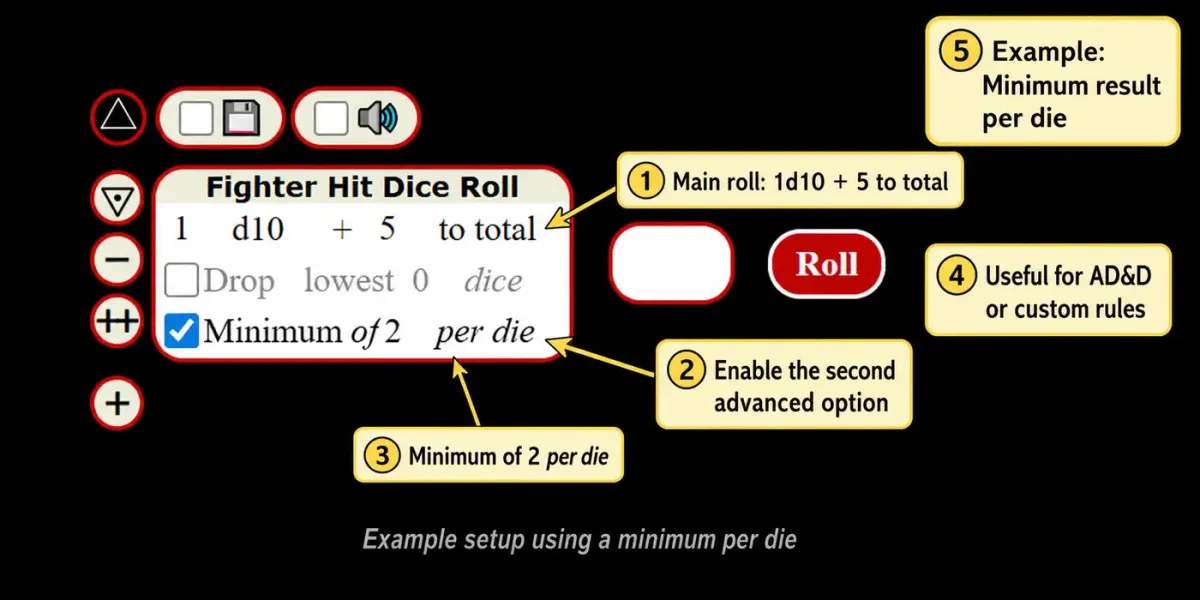
Figure 6. Example setup using a minimum per die.
The line above is:
- 1d10 + 5 to total
- Minimum of 2 per die
The floor turns every 1 into a 2, which nudges the average from 10.5 to 10.6. Small on one die, bigger on many.
The best real use: the SRD 5.2 Great Weapon Fighting feat lets you treat any 1 or 2 on a damage die as a 3 when you attack with a Melee weapon held in two hands [1]. On a greatsword that is exactly:
- 2d6 + your Strength modifier, to total
- Minimum of 3 per die
| Greatsword 2d6 | Average damage (dice only) |
|---|---|
| No fighting style | 7.0 |
| 2014 GWF: reroll 1s and 2s once (SRD 5.1) [2] | 8.3 |
| 2024 GWF: 1s and 2s count as 3 (SRD 5.2) [1] | 8.0 |
Example 3: 5E ability score roller
SRD 5.2's Random Generation method: roll four d6, keep the highest three, and do it six times [1].
- Create one line
- Set it to 4d6
- Tick the first advanced option
- Set it to Drop lowest 1 dice
- Duplicate the line until you have six
- Rename them Strength, Dexterity, Constitution, Intelligence, Wisdom, Charisma
- Press ALL to roll the set
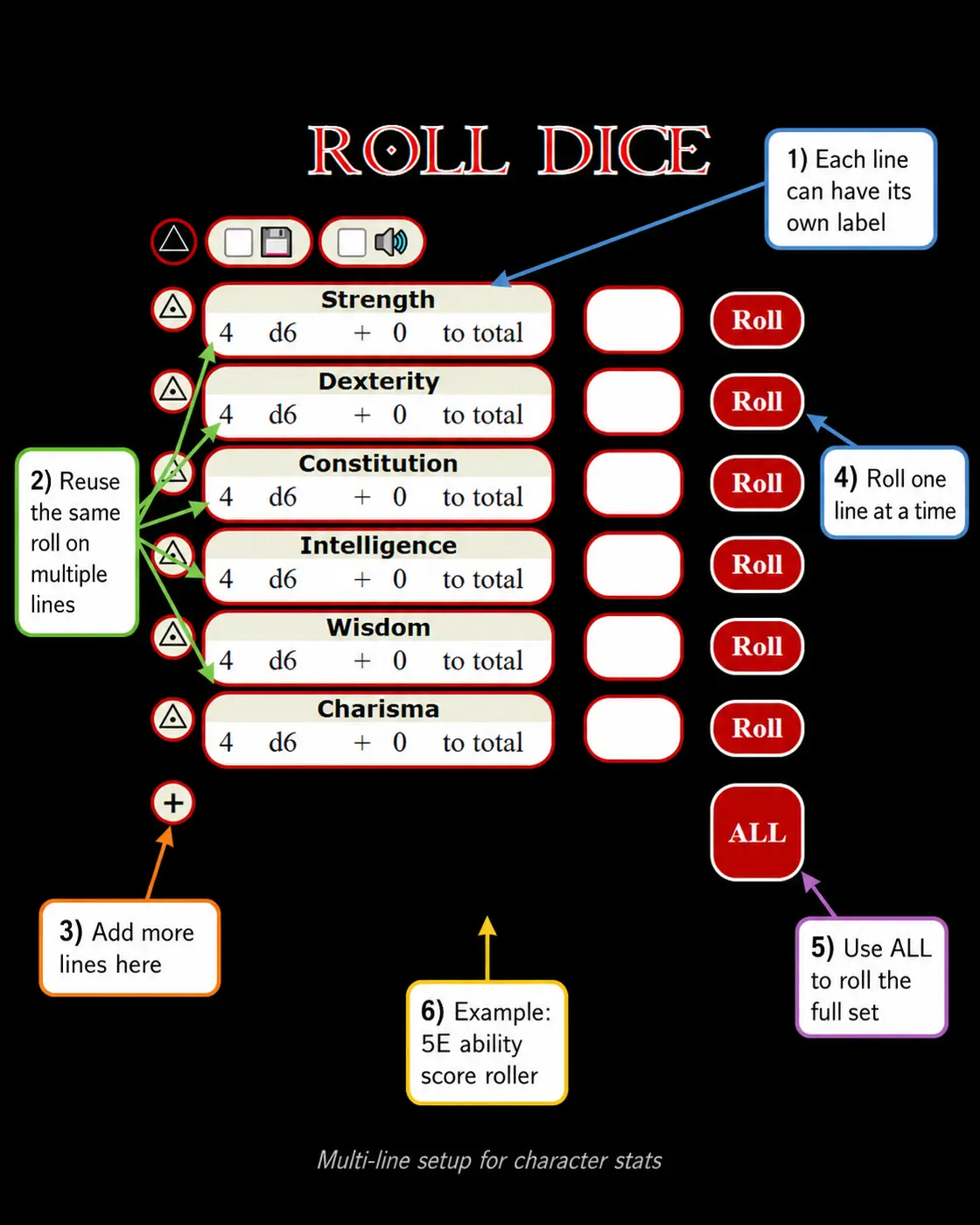
Figure 7. Example ability score roller.
What to expect from each score (all 1,296 outcomes counted):
| Score | Chance |
|---|---|
| 18 | 1.6% |
| 15 or higher | 23.1% |
| 12 to 14 | 38.5% |
| 9 to 11 | 27.8% |
| 8 or lower | 10.5% |
The average is 12.24 per score, nearly two points above the 10.5 of plain 3d6. That's why 4d6-drop-lowest heroes out-muscle their old-school ancestors.
Example 4: Upcast Fireball in one click each
Fireball deals 8d6 at 3rd level and 1d6 more for each slot level above 3rd [1]. Make one line per slot you have:
| Label | Line | Average |
|---|---|---|
| Fireball 3rd | 8d6 | 28 |
| Fireball 4th | 9d6 | 31.5 |
| Fireball 5th | 10d6 | 35 |
Now the wizard stops counting d6s on their fingers.
Rolling all lines at once
With more than one line, the ALL button below the list rolls every line together.
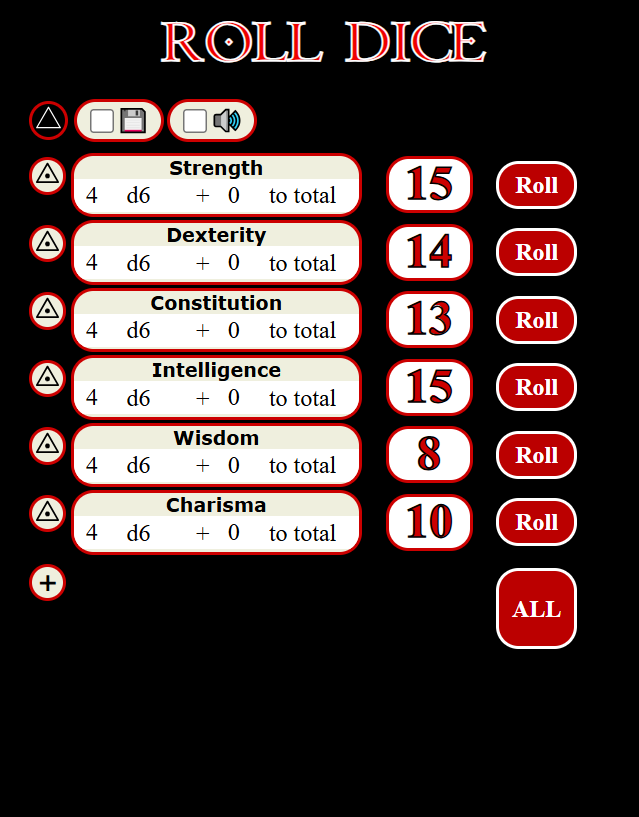
Figure 8. Example results after rolling all configured lines.
Use it for:
- a full set of character stats
- a monster's multiattack, attack and damage together
- a round of initiative for a whole group of monsters, one line each
Practical tips
- Label every line. "1d8+3" means nothing mid-fight; "Longsword" does.
- Duplicate, don't rebuild. ++ copies the advanced options too.
- One list per character. Sign in and name them.
- Use ALL for anything you always roll together.
- Expand only the lines that need advanced options; the rest stay compact.
Found a bug or want a feature? Tell us on the contact page.
Table Talk
James: I type 1d20 and roll. Why would I need ten lines?
Arthur: Because mid-fight you'll roll "1d8+3" and nobody will know what it was. Label it Longsword.
James: Labels are for people who plan. I'm here for vibes.
Arthur: Then plan once. Set your greatsword to 2d6, minimum 3 per die, and you have 2024 Great Weapon Fighting forever.
James: Isn't that just Reroll lowest?
Arthur: No. Reroll lowest rerolls the lowest die whatever it shows. Close to the 2014 rule, not the same. I checked the SRD.
James: Of course you did. My tip: watch "to each" versus "to total". 3d6 plus 2 to each is four more damage than you're owed.
Arthur: And your DM will notice. Build one line, copy it with the double plus, rename it. Done.
James: And when I still roll a 1?
Arthur: The log keeps it. Forever.
References
- Wizards of the Coast (2025). System Reference Document 5.2. "Playing the Game": Advantage/Disadvantage; "Character Creation": Step 3, Ability Scores; "Feats": Great Weapon Fighting; "Spells": Fireball. CC-BY-4.0. https://www.dndbeyond.com/srd
- Wizards of the Coast (2016). System Reference Document 5.1. "Classes", Fighter: Fighting Style, Great Weapon Fighting. CC-BY-4.0. https://www.dndbeyond.com/srd